A quieter connection.
macOS uses Apple Wireless Direct Link (AWDL) for nearby-device features. Ping Protection keeps it paused while you play, even when macOS tries to turn it back on.
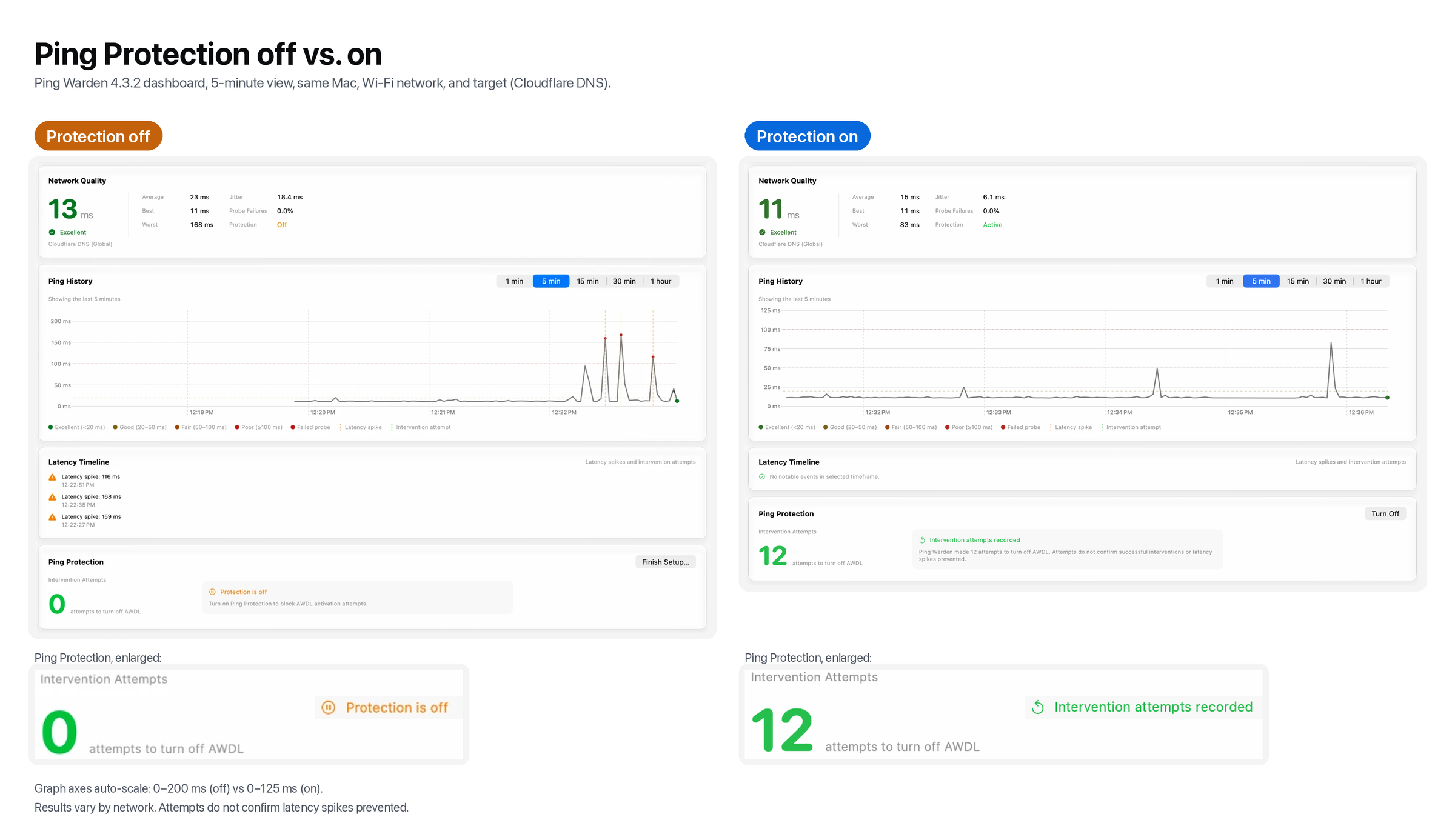
macOS uses AWDL for AirDrop, AirPlay, and Handoff. Its activity can contribute to Wi-Fi stutter. Ping Warden pauses AWDL while you play and graphs your latency so you can compare the results.
Developer ID signed and notarized by Apple · macOS 13 or later · Intel and Apple silicon · Version 4.4.0
One-time purchase in USD. Plus VAT or sales tax where applicable. The Control Center toggle requires macOS 26.
Selected public reviews and comments from Mac gamers.
“Cannot live without this. 10/10. I use this to make gaming with GeForce now on my Mac possible. Ever since I started using it, my experience has been perfect! Completely worth the price of the license.”
“Best fix I have found for Geforce NOW while on WiFi. Give it a try!”
“You cannot run GeforceNow or any other online streaming service without this app. So great that you developed this!”
“Great app, does exactly what it promises! I've been playing on GFN with it running, and the improvement is amazing. Highly recommended!”
“5/5 for an app that does exactly what it should! There is not a lot more to say other than thank you for making this app! :)”
“Ping Warden is fantastic! Simple, intuitive, and incredibly effective. It does exactly what it promises without unnecessary complexity or clutter. Easy to set up, reliable, and clearly designed with the user in mind. Highly recommended!”
“I use it every day. Thanks for developing it. You've done a real service for Mac game streaming.”
“Ended up using ping-warden and the lag is completely gone! I've enabled automatic game-mode detection and it does the job! Thanks!”
macOS uses Apple Wireless Direct Link (AWDL) for nearby-device features. Ping Protection keeps it paused while you play, even when macOS tries to turn it back on.
AirDrop, AirPlay, Handoff, and other AWDL-dependent features are unavailable while protection is on. Turn it off or pause for 10 minutes when you need them.
macOS can reactivate AWDL after a single sudo ifconfig awdl0 down command. Ping Protection responds to interface-change events and requests that AWDL return down. The dashboard counts intervention attempts beside your live latency. That count does not measure spikes prevented.
macOS Tahoe 26 and later
Add the Ping Protection toggle to Control Center, or drag it to the menu bar next to Wi-Fi and Sound. It shows whether protection is actually on, including when Game Mode turns it on for you.
Prefer fewer icons? Switch Ping Warden to Control Center only in Settings, and the toggle replaces its menu bar icon. Open Ping Warden from Applications or Spotlight whenever you need settings. Add the control.
Download the app and move it to Applications. Open it from there. The signed, notarized build supports Intel and Apple silicon.
Gumroad delivers your download and license key after purchase. Enter the key in Settings → License. One key covers the Macs you own.
Follow the welcome setup and approve the helper when macOS asks. Enable protection from the menu bar or the Control Center toggle. You can also use Game Mode to activate it for recognized games.
The dashboard, latency history, diagnostics, and updates work without a license. Enabling Ping Protection, including starting a Latency Session, requires the one-time $15 license or an active transition. You can download the app now and add a key later.
The source is available under the MIT license. You can inspect, modify, and build it yourself.
No. Ping Warden addresses the interference that AWDL can cause on Wi-Fi, whether you play through GeForce NOW, Xbox Cloud Gaming, or a self-hosted stream over Moonlight or Parsec. It cannot fix a slow internet connection, an overloaded router, or a distant game server. Use the free dashboard to understand your connection first.
If protection was enabled with an approved helper when you first launched version 4, you receive a 90-day transition from that launch. Updates preserve your original deadline. Check Settings → License for the time remaining.
If you donated through Buy Me a Coffee before version 4, email Oliver with your receipt and it will be honored as a full license.
On 2.0.5 or earlier, download the current version once. These early builds lack a working updater or have incomplete updater configuration. Quit Ping Warden, download the latest DMG, replace the copy in Applications, and launch it there.
On later versions, choose Check for Updates. If that fails, use the same manual download. Before 4.1.6, automatic checks could depend on helper approval. Version 4 asks you to accept the licensing change. Eligible existing users receive a 90-day transition. Read the upgrade steps and eligibility details.
Latency history, settings, and protection activity stay on your Mac. Ping Warden doesn’t send usage analytics. Anonymous crash and error reporting is on by default when no choice is saved. It sends crash reports, helper error codes, and app session counts, and it never sends ping targets, IP addresses, host names, network names, or license keys. Updates preserve your choice. Turn it off under Settings > Advanced > Privacy.
The app contacts Gumroad for license verification, checks for updates, and connects to your selected latency target. It also checks GeForce NOW’s status service to discover targets. License verification supports up to 14 days offline after a successful check.
Explore the complete setup guide, feature list, technical documentation, and troubleshooting guide.
Chasing a specific symptom? Start with stutter in GeForce NOW on a MacBook, awdl0 ping spikes, or whether AirDrop is behind your Wi-Fi lag.